How to Update Your LinkedIn Profile for a Job Search in 2026
Stature AI
AI Photography Experts
Job searching in 2026 looks meaningfully different from even two years ago. Most large employers now use AI-assisted screening tools that surface candidates before a recruiter ever opens a resume. Hiring for remote and hybrid roles has normalized global competition for the same positions. And increasingly, your LinkedIn profile is your resume — the first thing a recruiter, hiring manager, or potential client sees before deciding whether to reach out.
That means an outdated or underpopulated profile isn't just a missed opportunity. It's a signal you're not actively looking or not serious about the search.
This guide walks through every meaningful section of your LinkedIn profile — what to update, why it matters in 2026, and what most candidates still get wrong.
Step 1: Update Your Profile Photo First
Your photo is the most important change you can make. It appears in search results, notifications, connection requests, and recruiter inboxes — everywhere, at every step of the process. It's the first impression before anyone reads a single word you've written.
Research published in the Journal of Personality and Social Psychology shows that people form competence and trustworthiness judgments from a face in under 100 milliseconds. A blurry selfie, a cropped group photo, or no photo at all sends a different signal than a clean, well-lit professional headshot.
What makes a LinkedIn photo work in 2026:
-
Clear, natural lighting (face should be evenly lit, no harsh shadows)
-
Neutral or clean background — white, grey, light blue, or softly blurred
-
Appropriate for your industry (finance: conservative; tech: business casual; creative: more latitude)
-
Square crop, 400×400px minimum, with your face filling 60–70% of the frame
-
Current — within the last 3–4 years
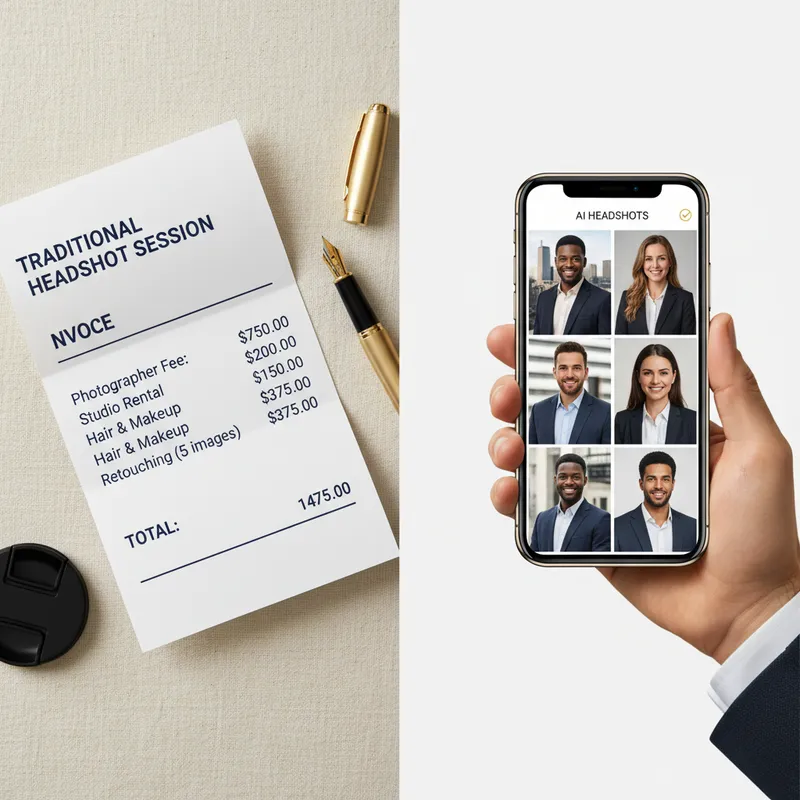
You don't need to book a studio photographer. AI headshot generators like Stature AI can produce recruiter-ready professional photos from a set of selfies — in minutes, not weeks. If you want to see what your results look like before committing, the free preview lets you generate a sample headshot with no upfront cost.
Step 2: Rewrite Your Headline for Recruiter Search
Your LinkedIn headline is the 220-character line that appears below your name everywhere on the platform. By default it shows your current job title and company. That default is almost always wrong for an active job search.
Recruiters search LinkedIn using keywords — job titles, skills, tools, industries. Your headline is one of the most heavily weighted fields in LinkedIn's search algorithm. A generic "Marketing Manager at Acme Corp" won't surface you in a search for "B2B SaaS Marketing Manager | Product Marketing | Go-to-Market."
A strong headline formula:
[Target job title] | [2–3 key skills or specializations] | [Optional: value prop or industry context]
Examples:
-
Software Engineer | React · TypeScript · AWS | Building products at scale -
Senior Financial Analyst | FP&A · SaaS Metrics · Board Reporting -
UX Designer | Product Design · User Research · B2B SaaS
Tips:
-
Lead with the job title recruiters are searching for — not your current title if it's unusual
-
Include the specific tools or platforms your target employers use (e.g., Salesforce, Figma, Snowflake)
-
Use the pipe (
|) or bullet (·) separators for scannability -
Avoid buzzwords that don't add keyword value: "rockstar," "passionate," "guru"
Step 3: Turn Your About Section Into a Positioning Statement
The About section (summary) is the one place on LinkedIn where you control the narrative. Most people either skip it entirely, paste in their resume objective, or write in third person — all of which waste the opportunity.
Your About section should answer three questions a recruiter asks when they land on your profile:
-
What do you do? — Your domain, seniority, and the type of problems you solve
-
What makes you different? — Your specific background, results, or perspective
-
What are you looking for? — Be direct about it; recruiters appreciate clarity
Structure that works:
-
Opening line: a single, punchy sentence that positions you clearly (no "I'm a passionate…" openers)
-
Body: 3–4 short paragraphs or bullet blocks covering what you've done, for whom, and with what results
-
Closing line: your target role, availability, and how to reach you
Keep it under 300 words. Use natural language — it's being indexed for keyword search, but it's read by humans. Avoid turning it into a wall of text; whitespace and short paragraphs scan better.
Step 4: Reframe Experience Entries Around Outcomes
Your experience section is where candidates most commonly undersell themselves. The default is to describe what the job entailed. What actually lands is describing what you accomplished.
Before: Managed a team of 5 engineers and led product development initiatives.
After: Led a team of 5 engineers to ship a new onboarding flow that reduced time-to-activate by 34% and increased 30-day retention by 18 points.
For each role, aim for 3–5 bullet points that follow this pattern:
- Action verb + what you did + measurable result
If you don't have exact metrics, use relative improvement ("reduced," "improved," "cut"), scale ("for a $40M revenue line"), or scope ("across 3 product teams and 200+ users").
Practical tips:
-
Use the same keywords in your experience descriptions that appear in your target job postings
-
Quantify even qualitative work: "Redesigned the onboarding email sequence, improving click-through rates" is better than "Worked on email marketing"
-
Include dates accurately — LinkedIn's algorithm uses employment gaps as a signal
-
Add media (presentations, links, samples) to roles where it adds credibility
Step 5: Audit Your Skills — Quality Over Quantity
LinkedIn allows up to 50 skills. More is not better. What matters is whether your top skills are:
-
Relevant to your target roles — match keywords from actual job postings
-
Endorsed by credible connections — a skill endorsed by 15 colleagues carries more weight than 50 with no endorsements
-
Positioned correctly — your three pinned skills appear prominently; everything else scrolls
How to audit:
-
Pull up 5–10 job descriptions for the roles you're targeting
-
Identify the skills that appear most frequently
-
Cross-reference with your current skills list
-
Remove skills you no longer want to use or that don't align with your target direction
-
Add missing skills that are genuinely in your background
After updating, reach out to 3–5 former colleagues who can genuinely endorse you for your top 5 skills. Reciprocate where you can.
Step 6: Build Out the Featured Section
The Featured section appears at the top of your profile, below the About section. It's prime real estate. A blank Featured section is a missed opportunity.
What to put in Featured:
-
A portfolio piece or case study — link to a published article, a project you're proud of, or a GitHub repo
-
A LinkedIn post that performed well — this signals engagement and thought leadership
-
A media mention or press link — if you've been quoted, covered, or spoken somewhere
-
Your personal website or portfolio — direct link, clearly labelled
For job seekers without an obvious portfolio: consider posting a brief LinkedIn article introducing yourself and your search. A short, professional post can serve as a Featured item that humanizes your profile.
Step 7: Set the Right Job Preferences (Privately)
LinkedIn has a built-in "Open to Work" feature that lets you signal availability to recruiters without broadcasting it to your entire network. Under "Job seeking preferences," you can:
-
Select the roles you're targeting
-
Specify location preferences (remote, hybrid, on-site, specific cities)
-
Control who sees your open-to-work status: recruiters only (private) or all LinkedIn members (the green banner)
If you're currently employed and don't want your employer to see the banner, use the recruiter-only setting. It's not 100% private (LinkedIn discloses this clearly), but it significantly reduces visibility to people inside your company.
Completing this section also tells the LinkedIn algorithm what to recommend you for and which recruiter searches to surface you in.
Step 8: Update Your Profile URL and Contact Info
A small but meaningful detail: LinkedIn auto-generates a profile URL like linkedin.com/in/firstname-lastname-4b72a. Customizing it to linkedin.com/in/yourname looks cleaner on a resume and is slightly better for direct search.
Also check:
-
Contact info: Is your email current? Do you have a website or portfolio linked?
-
Location: Is it set to where you're actually open to work? Remote workers should still have a city/region — an empty location field filters you out of some searches.
-
Profile language: If you're targeting international roles, consider adding a secondary profile in the relevant language.
The Highest-Impact First Step
If you're doing one thing before anything else, update your photo. It's the most visible element of your profile and the one that creates — or breaks — the first impression before recruiters ever reach your headline or experience.
Studies on first impressions from professional photos confirm that a strong photo influences not just likability but perceived competence and trustworthiness. That effect happens in less than a second.
With Stature AI, you can get a recruiter-ready professional headshot in minutes without booking a photographer, commuting, or rearranging your schedule. Upload a few selfies, choose your style, and have a set of polished photos ready to use today.
Try the free AI headshot preview →
No payment required. See your results before you commit.
LinkedIn Profile Update Checklist (2026)
-
Profile photo: current, well-lit, professional background, face filling 60–70% of frame
-
Headline: target job title + top skills + keyword-optimized
-
About section: clear positioning, results-oriented, ends with what you're looking for
-
Experience: 3–5 outcome-based bullets per role with measurable results
-
Skills: aligned with target job postings, top 3 pinned, endorsed by credible connections
-
Featured section: portfolio, post, media mention, or personal site
-
Open to Work: set to recruiter-only if currently employed
-
Custom URL:
linkedin.com/in/yourname -
Contact info: current email, website, correct location
Updated June 2026. LinkedIn's interface and algorithm change periodically; verify current settings in the platform.
Upgrade Your Professional Image
Stop using outdated or amateur photos for your career. Get studio-quality AI headshots in ~2 minutes with Stature AI. Join thousands of professionals who have already upgraded their digital presence.
Create Your Headshots NowRead Next
AI Headshot Generators for LinkedIn: Top Choices in 2025
Only 9% of LinkedIn users update their profile picture regularly, yet profiles with professional-looking headshots get 21x more profile views and 9x more connection requests. That discrepancy points to a significant missed opportunity for most professionals. Are AI headshot generators finally good enough to bridge the gap?

AI Headshots for Global & Remote Teams: How Distributed Companies Get Consistent Professional Photos
Distributed teams don't need to fly in a photographer for consistent employee photos. See how AI headshots let every remote team member get a matching, professional look from their own laptop.
Best AI Headshot Generators in 2026: An Honest Comparison
We compared 6 top AI headshot generators on quality, speed, privacy, and price. See which tool wins for LinkedIn, job seekers, and professionals in our honest 2026 comparison — and try the #1 pick free.